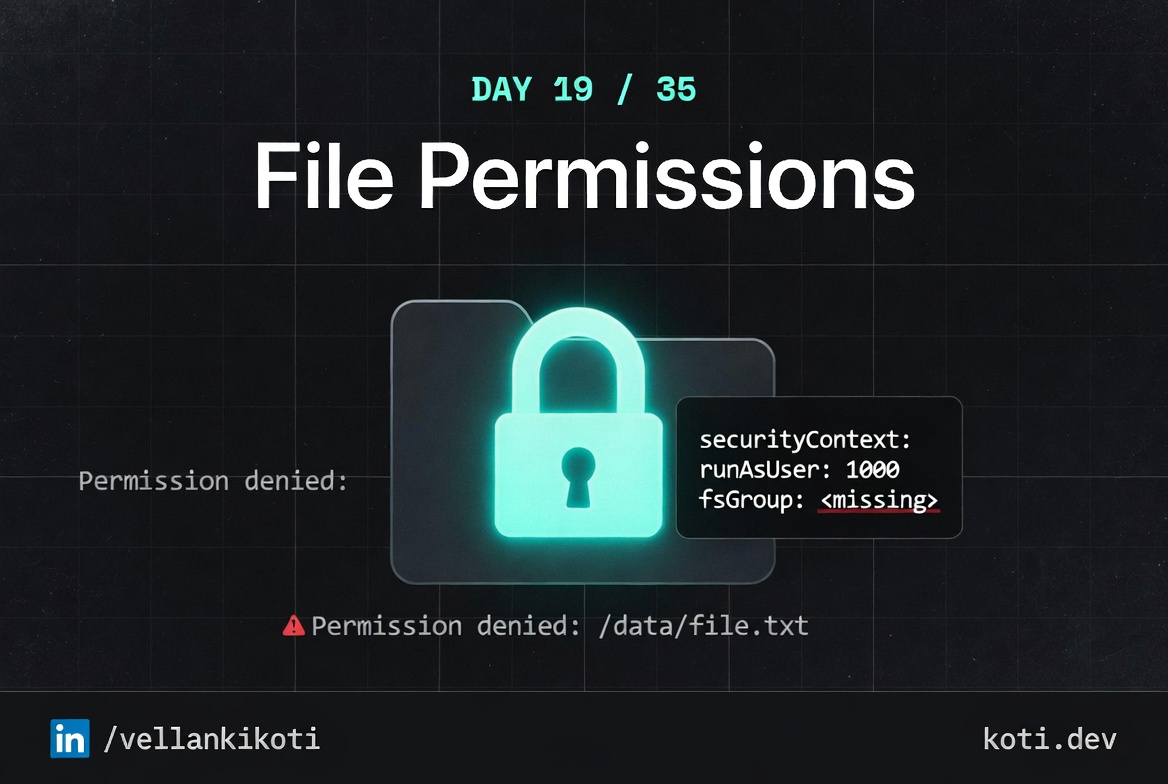
11:48 PM. Security team had merged a baseline Pod Security Standard change that flipped readOnlyRootFilesystem: true on every workload in the cluster. Two services broke immediately, which we expected. Eight broke over the next four hours, which we did not. One of them was an internal auth service that wrote a tiny session cache to /tmp. The error in the logs was sh: can't create /tmp/test.txt: Read-only file system. The service owner opened a ticket titled "readonly filesystem bug in Kubernetes 1.29." It was not a bug. It was Linux doing exactly what we told it to do, and we had forgotten that apps write to /tmp even when we think they do not.
The scenario
The volume mounted fine. The uid did not match.
The pod runs as uid 1001. The PV's files were written by uid 1000 on a previous node. The inode stores ownership — it does not auto-chown when a new pod mounts the volume. The container can read the directory but every write returns EACCES. The fix is fsGroup: a kubelet chown on mount.
The pod uid and the file uid are different people
The pod runs as runAsUser: 1001. The PV's files were created by a previous pod (or a job, or a manual copy) that ran as uid 1000. The volume mounts successfully — the mount does not care about ownership. The first write() fails because the kernel checks the inode, not the pod spec.
Inodes persist — the PV does not reset on remount
POSIX uid/gid are stored in the inode on the ext4 filesystem. Unmounting, re-mounting, or restarting the pod does not change them. The volume arrives with uid 1000 every time, regardless of which pod is using it now.
fsGroup triggers a kubelet chown on mount
Add securityContext.fsGroup: 1001 to the pod spec. The kubelet will recursively chown :{fsGroup} and chmod g+s the volume before the container starts. The pod uid becomes a member of the gid that now owns the files.
Nice clean reproduction in the repo. One pod, one readOnly root filesystem, one doomed write to /tmp.
git clone https://github.com/vellankikoti/troubleshoot-kubernetes-like-a-pro.git
cd troubleshoot-kubernetes-like-a-pro/scenarios/file-permissions-on-mounted-volumes
lsissue.yaml runs a busybox pod with readOnlyRootFilesystem: true and a command that tries echo test > /tmp/test.txt. That command has no chance.
Reproduce the issue
kubectl apply -f issue.yaml
kubectl get pod file-permissions-issue-podNAME READY STATUS RESTARTS AGE
file-permissions-issue-pod 0/1 CrashLoopBackOff 3 (15s ago) 70sThree restarts in a minute. Standard crashloop signature.
Debug the hard way
kubectl logs file-permissions-issue-podsh: can't create /tmp/test.txt: Read-only file systemOne line. Unambiguous. The kernel refused the write because the entire root filesystem, including /tmp, is mounted read-only.
kubectl get pod file-permissions-issue-pod -o jsonpath='{.spec.containers[0].securityContext}{"\n"}'{"readOnlyRootFilesystem":true}kubectl exec file-permissions-issue-pod -- mount | grep " / "
# overlay on / type overlay (ro,...ro right there in the mount flags. The root is read-only because the securityContext said so, and Linux honored it literally. No process, no matter its UID, can write to any path under / that is not covered by a separate writable mount.
Why this happens
readOnlyRootFilesystem: true is one of the strongest container-hardening flags you can set. It remounts the overlay root as read-only, which means a compromised process cannot drop a binary on disk or tamper with installed files. The catch is that it is total. Every path in the container, including /tmp, /var/run, /var/log, and anything your app touches for short-lived state, becomes read-only. Linux gives you no partial mode. It is read-only everywhere, or read-only nowhere.
The way you get both security and working apps is to mount small writable volumes over the specific directories the app needs. An emptyDir at /tmp gives you a writable tmpfs scoped to the pod, wiped at every restart, not backed by persistent storage. The root filesystem stays locked down, and the app gets its scratch space. This is the pattern Pod Security Standards expects you to use, but nobody writes it down when they first flip the flag.
Two adjacent traps live here. The first is fsGroup and runAsUser: if your writable volume is a PVC backed by something external, the UID inside the container may not own it, and you will get Permission denied instead of Read-only file system. The error looks similar but the fix is different. The second is that log libraries often write to /var/log or a hardcoded absolute path, and you will only find it when the app crashes in production.
The fix
kubectl delete -f issue.yaml
kubectl apply -f fix.yamlThe diff keeps readOnlyRootFilesystem: true and adds a writable emptyDir at /tmp:
securityContext:
  readOnlyRootFilesystem: true
volumeMounts:
- name: tmp
  mountPath: /tmp
volumes:
- name: tmp
emptyDir: {}kubectl get pod file-permissions-issue-fixed-pod
# file-permissions-issue-fixed-pod 1/1 Running 0 20s
kubectl exec file-permissions-issue-fixed-pod -- cat /tmp/test.txt
# testSecurity flag intact. Write works. Both wins, no compromise.
The lesson
readOnlyRootFilesystem: trueis total. Every path in the container is read-only unless you mount something writable over it.emptyDirat/tmpis the cheapest, safest way to give an app scratch space without weakening the security posture.- Read the exact error string. "Read-only file system" is a mount flag problem. "Permission denied" is a UID or fsGroup problem. They look similar and they fix differently.
Day 19 of 35. Tomorrow, a pod error that looks like a container bug but lives on the node.